
Chemical Equations
What Makes Chemical Equations Accessible?
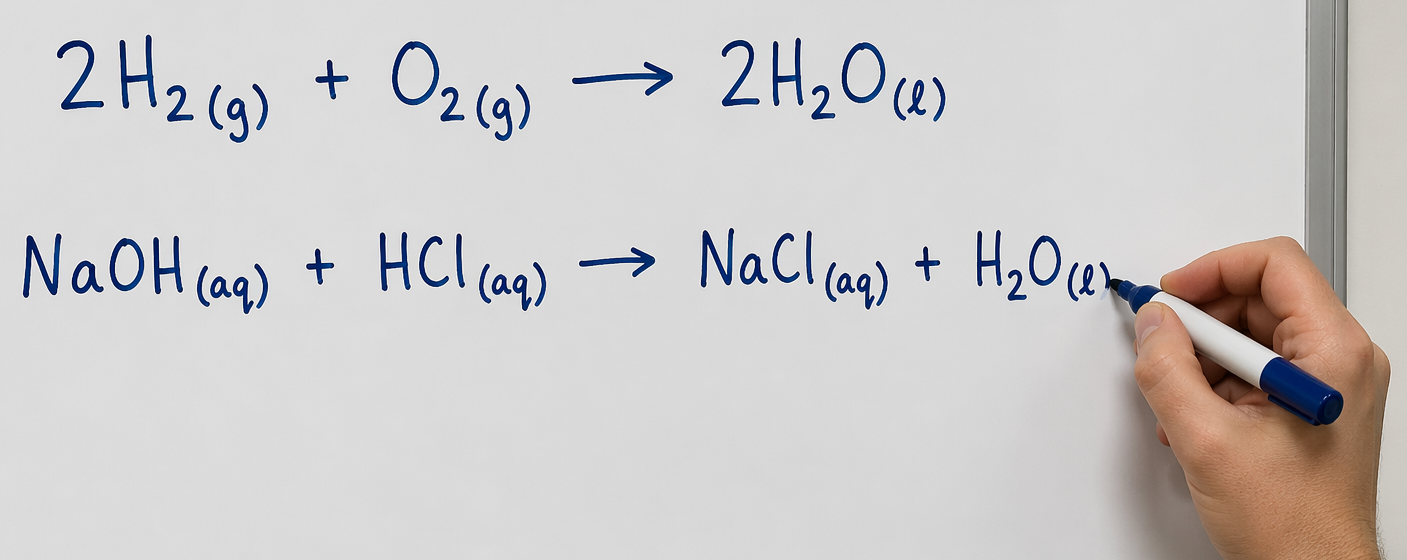
Chemical equations are most accessible when people using assistive technology (AT) like screen readers or braille displays can easily interpret, navigate, and interact with the equations. This occurs when the equations are presented as structured data (usually MathML) that allows AT users like screen reader users to navigate the overall equation, individual compounds, polyatomic ions, and elements.
Why this Matters
- Reduces Cognitive Load: Students can "read" a complex formula at their own pace rather than hearing one long, linear string of text.
- Accuracy: Prevents "nonsensical" verbalizations (e.g., a screen reader misreading "Co" as a word instead of Cobalt).
- Scalability: Equations stay crisp when students zoom in, unlike images which can pixelate.
Important: Accessible chemistry notation is a rapidly evolving area. While we aim to document the latest tools and best practices, software capabilities are constantly shifting. Our goal is to provide straightforward technical guidance, though specific implementation needs may vary as industry standards and assistive technologies continue to mature.
Chemical Equations in Canvas
You do not need to be a programmer to author accessible chemical equations effectively in Canvas. The Equation Editor in Canvas can convert visually typed equations into LaTeX. From there, Canvas uses MathJax to render that LaTeX into accessible MathML.
Recommended Canvas Workflow:
- Open the Equation Editor (the √x icon) in the Rich Content Editor.
- Type your formula visually using the Equation Editor's toolbar.
- Toggle "Directly Edit LaTeX" and apply these "Clean-Up" rules to ensure accessible navigation:
- Wrap Elements: Put elements in
\text{}tags (e.g.,\text{Co}). - Bracket Charges/Subscripts: Enclose multi-digit subscripts or charges in curly brackets
{}(e.g.,O_{3}or^{2+}). - Group Compounds: Enclose the entire compound or species in curly brackets to help the screen reader group them logically.
- Wrap Elements: Put elements in
Example:
Default LaTeX: Co(NH3)6^{3+}
Accessible LaTeX: {{\text{Co}\left({\text{N}\text{H}_3}\right)_6}^{3+}(aq)}
Chemical Equations in Microsoft Office
Microsoft Office uses a different coding language (OMML). While it is currently "readable" by most screen readers, it is less robust than web-based MathML.
- Best Practice: Use the Insert > Equation command to open the built-in Microsoft Equation Editor.
- Avoid: Do not copy-paste equations from Office into Canvas (or vice versa), as this will often break the formatting. Keep Office content in Office and Canvas content in Canvas.
- Note for Mac Users: VoiceOver has limited support for subscripts/superscripts in Word. If your course is heavy on chemistry notation, providing a web-based version (Canvas/HTML) is a significant accessibility win.
Handling Non-Interactive Content (Images & Text)
If you must use images or rich text, follow these optimization steps:
Images with Alt Text
If using an image, your Alt Text should balance detail with brevity.
Example: CoCO3(s) → Co2+(aq) + CO32−(aq):
- Avoid: "Equation 1" (Too vague) or "Upper C lower o upper C upper O subscript 3..." (Too wordy).
- Better: Use a "Spoken Math" style:
Co C O sub 3 (s) right arrow Co super 2 plus (aq) + C O sub 3 super 2 minus (aq). - Pro Tip: Use spaces between element symbols (C o vs Co) to ensure the screen reader announces the letters individually.
Rich Text (Standard Typing)
Typing formulas directly (e.g., CoCO₃) is the least accessible method because some screen readers ignore subscripts by default.
- In your syllabus, let students know that if they use a screen reader like NVDA, JAWS, or VoiceOver, they should set punctuation/symbol verbosity to All and enable formatting announcements (such as bold and italics) when needed.
- Be consistent with capitalization and formatting.
Accessible "Spoken" Chemistry (Video & Lecture)
How you say an equation is just as important as how you write it.
- Pause for Clarity: Say "N-a [pause] O [pause] H" instead of "NaOH" as a single word.
- Caption Accurately: Ensure your video captions show subscripts correctly (e.g.,
H_2O). Do not let auto-captions turn "CO2" into "CO two" or "see oh to." - Provide Notes: Always provide accessible digital versions of the formulas shown in videos so students can review the structured notation.
Accessible Chemistry Checklist 📌
- Prioritize Canvas/Web: Use the Canvas Equation Editor + LaTeX whenever possible for native MathML rendering.
- Clean Up LaTeX: Use
\text{}for elements and{}for subscripts/charges to ensure screen readers don't mispronounce symbols. - Keep Platforms Separate: Avoid copy-pasting equations between Word and Canvas; author them directly in the platform where they will stay.
- Optimize Image Alt Text: Use "Spoken Math" style (e.g., "C o sub 2") and use spaces between element letters so they are read individually.
- Verify Magnification: Ensure equations are vector-based (LaTeX/MathML) so they don't blur when zoomed to 200%.
- Sync Video and Text: Explicitly verbalize elements during lectures and ensure captions correctly reflect subscripts (e.g., H_2O).
- Set Student Expectations: Remind AT users to set punctuation verbosity to "All" and use Safari if they are on a Mac.
- Be Consistent: Pick one verbalization and notation style and stick to it throughout the semester.