
Prepare for Teaching Disruptions
Interruptions to instruction—technology disruptions, weather emergencies, or personal circumstances —can occur at any time. Taking a few steps at the start of each semester can help you maintain academic continuity if an emergency occurs.
Communicate with Your Students
Communicate with your students as soon as possible through alternative methods, such as university email or other approved communication platforms.
Use Class Tools to Send Emails
The most streamlined method to contact your students outside the LMS is to utilize the Grainger College of Engineering Class Tools. This is available to all instructors and is an efficient way to email your course. Selecting the sections to message and sending the email are both done within the same browser page. Please see the Engineering IT Knowledge Base Article on Class Tools for details on how to access the Class Tools messaging.
Note: there are limits to University Email that may present issues to large enrollment courses. The Grainger Class Tools application will avoid issues with sending mail to large enrollment courses. For more options for sending messages to large courses, please review this Knowledge Base Article on bulk emails. The Grainger Class Tools application will avoid issues with sending mail to large enrollment courses.
Use Zoom
Share Course Materials with Your Students
If possible, use copies of your course materials, syllabi, assignments, and grade records that may exist on your computer, departmental drives, Box OneDrive or other approved storage locations.
Here is a three-step process for creating a folder and securely sharing materials with your students using Illinois Box. This method restricts access to only those with an Illinois Box account.
Create Folder and Share
Here is a three-step process for creating a folder and securely sharing materials with your students using Illinois Box. This method restricts access to only those with an Illinois Box account.
Create the Course Materials Folder in Illinois Box
- Access your Illinois Box account by visiting https://uofi.app.box.com/ and signing in with your Net ID and password.
- Create a new folder dedicated to your course materials.
Generate a U of I-Restricted Share Link
- Select the folder and enable Shared Link.
- Set the sharing type to People in your Company. This ensures access is restricted to people from Illinois. Note that anyone from Illinois who has the link will be able to view the content of the folder.
- For the link settings, select View and Download rights so students can save the materials.
- Alternatively you can share the folder or file with students via their individual email addresses. You will need to type their addresses into the field of the Share dialog box and invite as Viewer.
Distribute the Link to Students
- Copy the generated shared link.
- Communicate this link to your students, such as by sending it to your Class List.
Submitting Assignments and Proctor Exams
We have a lot of tools at our disposal to collect assignments and to proctor exams. Using Box to Collect Assignments can be a very easy process. Illinois Media Space is a great option to have students present any presentations or final projects. And of course, Zoom is a low-effort option to proctor any exams you have.
Using Box to Collect Assignments
Use the following steps to create an upload-only folder in Box for collecting any assignments:
Locate the Folder
- Log in to your Box account.
- Select an existing folder or create a new one where you want the uploaded files to go.
Enable File Request
- Hover over the folder, click the More Options ellipsis (...) or right-click the folder.
- Select File Request from the menu.
- In the File Request window, click the toggle to Enable the link (if not already on).
Configure Security Settings
Click Settings. We recommend turning both of the following settings on so it is not an open upload link for everyone: the Edit is to customized the required fields, the Settings button is for the pop-up with two toggles). We recommend turning both of the following settings on so it is not an open upload link for everyone:
- Require uploaders to log in to Box: Toggle this on. If you do not either require an email or turn this toggle on, you will have no idea who uploaded the files and will be dependent upon file names. By using this choice, uploads will be securely tagged with the user's email address.
- Set a link expiration date: Toggle this on and select the specific date you want the upload link to automatically deactivate (e.g., a submission deadline).
Save and Share
- Click Save to apply the settings.
- (Optional) You can further customize the page by adding a title or instructions for your uploaders.
- Click Copy next to the generated URL and share it with your uploaders.
Using Illinois Media Space to Collect Projects and Presentations
Illinois Media Space offers several media upload and sharing options to consider when leveraging this system for video assignments.
- The Kaltura, Getting Started documentation offers an orientation to uploading and sharing.
- For resources on the various sharing, permissions, and publishing routes so someone other than the media uploader can view a video:
- Documentation on Sharing Videos, Adding Collaborators, and Making a Video Public
- CITL provides a video Walkthrough of Media Space Sharing & Permissions
- If your grading needs require a Channel to organize media uploads from various submissions, see this article on Channel Creation and this one on adding a Roster for a Media Space channel.
Zoom recordings into Media Space: Consider whether to leverage the automatic depositing of a Cloud Recording of a Zoom Meeting into the meeting host’s My Media of Media Space. More information is available in the article “Zoom, Recording to cloud or Illinois Media Space.”
Using Zoom to Proctor Your Exams
Zoom Settings
Sign into Illinois.zoom.us. Before scheduling the meeting, adjust these settings. The easiest way to find them is to use the search field.
| Setting | Action Required |
|---|---|
| Allow participants to rename themselves | Disabled |
| Enable Waiting Room | Enabled |
| Focus Mode | Enabled (Allow host to enable focus mode when scheduling: Enabled) |
| Virtual Background | Disable the virtual background or video filters |
| Recording | Cloud Recording: enabled Record gallery view with shared screen: enabled (Reference: ZoomSettings Image) |
Schedule the Meeting
Press the Meetings button in the left-hand navigation menu and then press the +Schedule a New Meeting button. The following options are recommended:
| Option | Action Required |
|---|---|
| Waiting Room | Enabled |
| Require authentication to join | Illinois email accounts |
| Allow participants to join anytime | Disabled (Press the Show button under Options to access this) |
| Mute participants upon entry | Enabled |
| Automatically record meeting | Enabled for In the cloud |
| Enable focus mode when meeting starts | Enabled |
| Alternative hosts | If you have any co-instructors or TAs, you can enter their names here. |
How Students Join
The passcode is embedded within the link that you get when scheduling the meeting, but you should share the meeting ID and passcode with your students so it is easy for them to join on a mobile device.
Students should join the meeting from a mobile device so that they can angle the camera at them sitting at their computer. They should try to make it so you can see them, their monitor and the top of their desk. You probably won’t be able to read their screen but should be able to see if they open anything on the computer not permitted or try to use other resources nearby.
Start the meeting. Before admitting students, the Waiting Room should still be enabled, and Focus Mode should already be on. Verify that the settings below are correct. (Spotlight is not an option until there are at least 2 other participants). Use the Zoom toolbar to access each panel below.
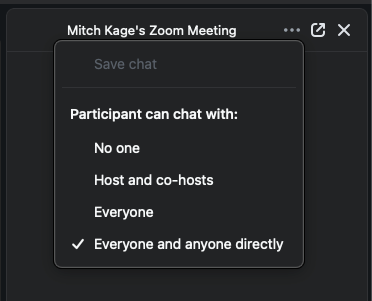
Press the Ellipsis button (3 dots) and choose “Participants can chat with hosts and co-hosts.”
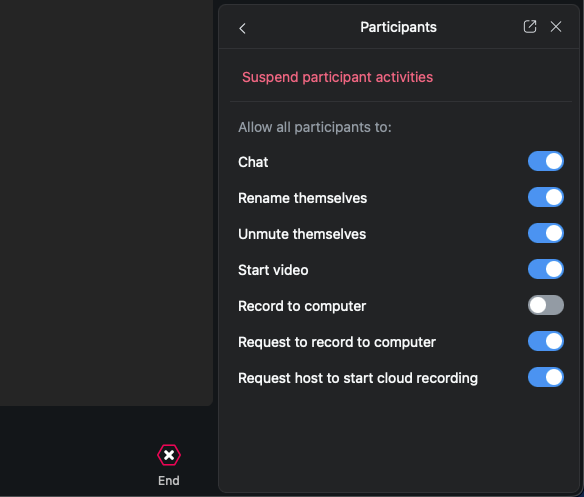
Press the Host Tools button to open a panel on the right and press Participants to view these options.
- Chat: enabled
- Start video: enabled
- All other options should be disabled.
- Press the back arrow to the left of the word Participants.
Press the Advanced button. If it’s not already on, press the switch to enable Focus Mode.
Press the Participants button in the toolbar and use the button to admit all participants. You could disable the waiting room, but we strongly recommend keeping it enabled for security.
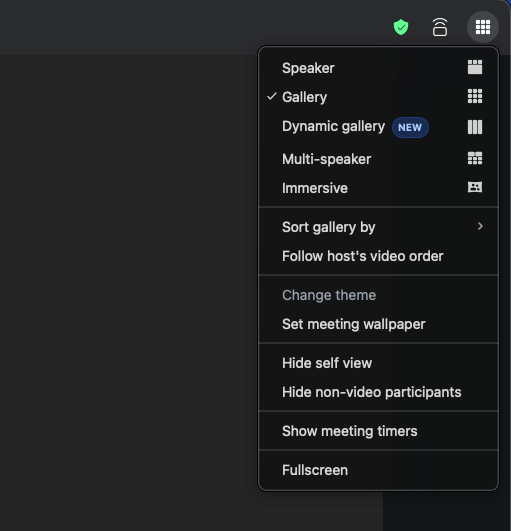
We recommend viewing the participants in grid view with Gallery selected.
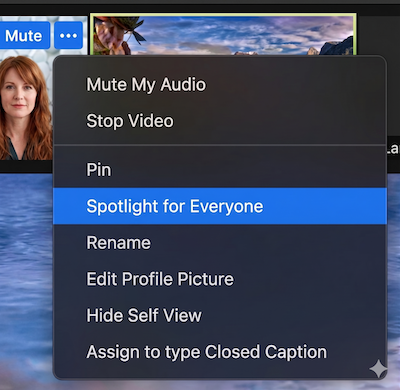
Make sure that your camera is not muted, and in your video tile, press the Ellipsis button to select Spotlight for Everyone. This way, students will only see you. (The Spotlight option is only available once you have 2 or more participants.
If you record to the Cloud, this means that the video is recorded both to the Zoom cloud account of the person who scheduled the meeting and is also copied to their mediaspace.illinois.edu account. You can sign into MediaSpace and review the recording later.
- Students use a mobile device with camera to show their workspace (camera is not pointed at face)
- Proctors can view the camera feed of up to 48 other participants simultaneously and can pin single user camera if needed
- Use private chat to communicate between the proctor & student. If audio is needed, use a breakout room for private conversations or to share screen.
When Regular Instruction Resumes
Once you can resume regular instruction for your course, the following steps can be helpful for you and your students to ensure a smooth transition back into the regular course schedule:
- Reconnect with Your Students on Campus: Communicate updated expectations and timelines clearly to students.
- Verify and Report Issues: Verify that gradebook entries, assignment submissions, and integrations are functioning as expected after restoration.
- Course Settings: Review course settings, assignment due dates, availability dates, and module requirements to ensure they still align with the adjusted course schedule.
- Deadlines and Timelines: Extend deadlines and reopen assignments or quizzes as appropriate to provide students adequate time to complete coursework.
Future Actions
The recommendations above will help you prepare for interruptions at the individual level. During the 2026-2027 academic year, we will explore additional ways to maintain instructional continuity on a large scale. For example, we are investigating programmatic methods to back up data and grades from Canvas.
Need further guidance?
CITL is here to help you think through your specific needs and find the solution that works best for you. Contact us for a consult.