
Overleaf LaTeX-to- PDF/UA-2 Workflow Guide
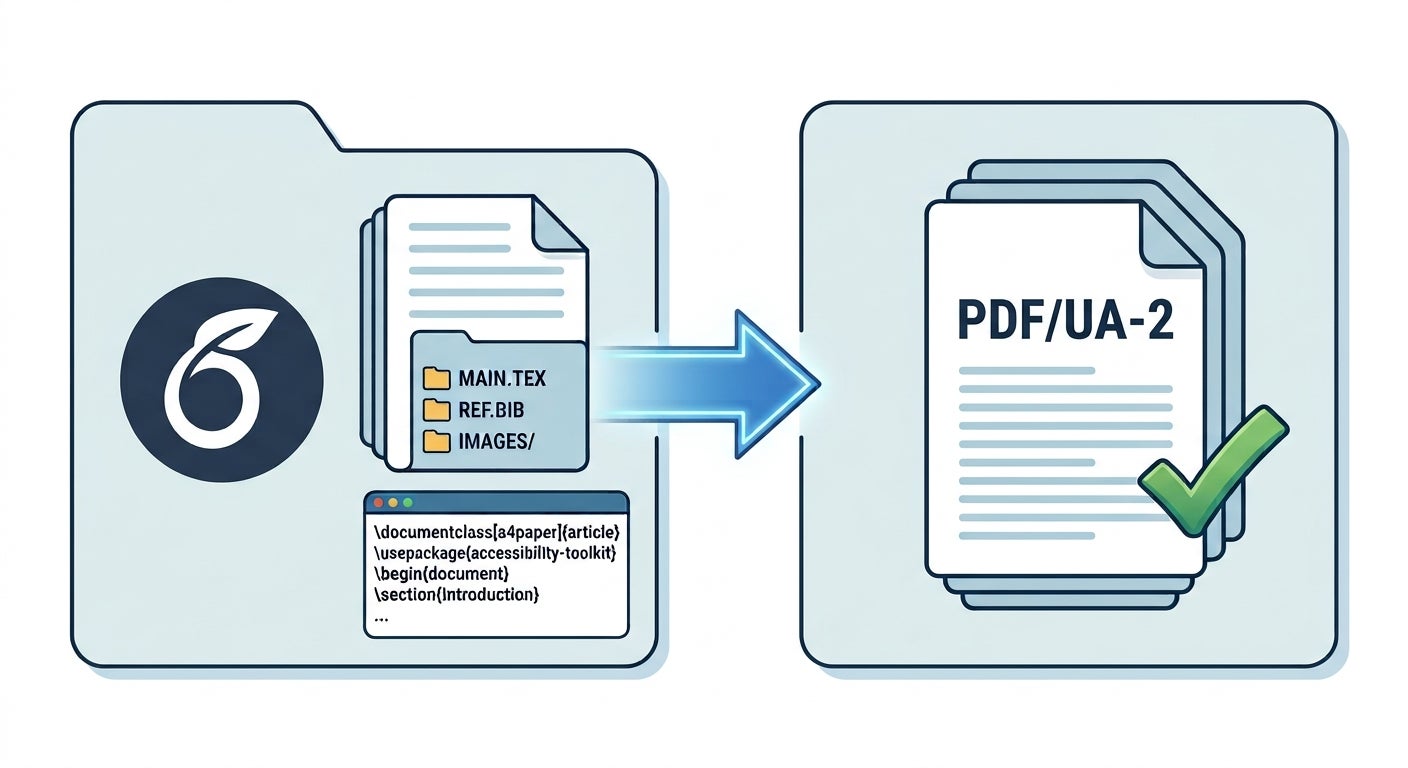
Overleaf to PDF/UA-2 Workflow
This guide is intended for instructors creating math and STEM documents in Overleaf. It provides a practical workflow for producing tagged PDF 2.0 output targeting PDF/UA-2 (Universal Accessibility, Part 2), the current international standard for accessible PDF. PDF/UA-2 supports accessible representations of mathematical content, including MathML. The LaTeX template provided is configured to produce tagged PDF 2.0 targeting PDF/UA-2, with MathML representations available through both MathML Structure Elements and MathML Associated Files. The resulting PDF must still be validated for PDF/UA-2 conformance and tested with appropriate PDF viewers and assistive technology.
Phase 1: Create a Master Math Project Template
In Overleaf, a Project is a complete workspace folder containing your source files (.tex), figures (.pdf, .png), and project-level compilation settings. Because accessibility tagging requires specific project and document configurations, the most efficient workflow is to set up a Master Math Template Project once and reuse it for future documents that contain math equations.
To Create a Master Math Project Template:
- Create the Master Math Project: On your Overleaf Dashboard, click New Project → Blank Project and name it PDF-UA2 Master Math Template.
- Configure Compiler Settings: Inside the project, go to Settings and select Compiler to configure the following items:
- Compiler: LuaLaTeX (recommended for mathematical documents because it can automatically generate MathML representations of math).
- TeX Live version: 2026 (use 2025 only when compatibility with an existing project or workflow requires it).
- Compile mode: Normal. Use Normal mode when producing the final PDF. Fast [draft] mode is intended primarily to speed compilation by replacing graphics with placeholders.
- Paste the Template Code: Replace the contents of main.tex with the Master Math LaTeX Template provided in Phase 2 below.
- Duplicate for New Documents: Whenever you need to write a new handout, exam, or manuscript:
- Go to your Overleaf Dashboard (showing All Projects and select the PDF-UA2 Master Math Template.
- Use the More button to select Make a Copy from the dropdown and rename the copy (e.g., MATH 241 - Homework 1).
- After copying, select the copy and use Settings > Compiler to verify that the compiler, TeX Live version, and accessibility settings match the Master Math Template.
Phase 2: Download or Copy the Master Math LaTeX Template
Download the PDF/UA-2 Master Math LaTeX Template (.zip) to upload directly to Overleaf, or copy the template code below into your Master Math Template project's main.tex file.
View Master Math LaTeX Template Code
Click code block to select all, then press Ctrl+C (PC) or Cmd+C (Mac) to copy:
% ==============================================================================
% LINE 1: DOCUMENT METADATA (MUST BE BEFORE \documentclass)
% ==============================================================================
\DocumentMetadata{
  lang = en-US,
  tagging = on,
  pdfstandard = ua-2,
  tagging-setup = { math/setup = {mathml-SE, mathml-AF} }
}

\documentclass[12pt]{article}

% Core packages for accessibility, typography, and graphics
\usepackage{unicode-math}
\usepackage{graphicx}
\usepackage{float}    % Provides [H] for deterministic reading order
\usepackage[singlelinecheck=false]{caption} % Standardized caption handling
\usepackage{hyperref}

% Document Metadata Details & Title Display Requirement
\hypersetup{
  pdftitle={Sample Title for Accessible Mathematics},
  pdfauthor={Department of Mathematics},
  pdfsubject={PDF/UA-2 Compliant Document Workflow},
  pdfkeywords={PDF/UA-2, LaTeX, MathML, Accessibility},
  pdfdisplaydoctitle=true % Mandatory for PDF/UA compliance
}

% Layout and Margin Configuration
\usepackage[top=0.75in, bottom=0.75in, left=1in, right=1in]{geometry}

% ==============================================================================
% INSTRUCTOR CONTENT AREA BELOW THIS LINE
% ==============================================================================

\title{Sample Accessible Math Document}
\author{Author's Name}
\date{\today}

\begin{document}

\maketitle

\section{Introduction}
Welcome to the accessible document workflow. This file is configured to build
native \textbf{PDF/UA-2} tag trees with structured \textbf{MathML} representations
embedded directly alongside mathematical content.

\section{Mathematical Content Examples}

Below are examples of inline and block display expressions that are processed into structural MathML elements.

\subsection{Block Math Example}
\[
f(x)=a_{0}+\sum_{n=1}^{\infty}\left(a_{n} \cos \frac{n \pi x}{L}+b_{n} \sin \frac{n \pi x}{L}\right)
\]

\subsection{Inline Math Example}
\( \left(x+\frac{b}{2 a}\right)^{2}=-\frac{c}{a}+\frac{b^{2}}{4 a^{2}} \)

\section{Images and Figures}
Always provide descriptive alternative text using the \texttt{alt} key for images:

\begin{figure}[H]
  \centering
  \includegraphics[width=0.35\textwidth, alt={Line graph with an oscillating red wave flattening against a blue step function as n increases}]{example-image}
  \caption{Example figure demonstrating Fourier series convergence.}
  \label{fig:fourier}
\end{figure}

\end{document}
Phase 3: Best Practices for Writing Accessible Math and Graphics
1. When to Use LaTeX vs. Image Files
- Math Formulas: Use LaTeX math notation (
$...$for displaying math inline,\[...\]for block display), rather than screenshots or images. Images of math do not provide the same machine-readable math structure as LaTeX-generated math and can also become pixelated when enlarged. - Plots, Figures and Diagrams (Use Graphics Files): Use image files (e.g., plots generated from Python/MATLAB, photographs, or geometric diagrams) inside
\includegraphics.
2. Acceptable Image File Formats
| Format | Extension | Best Used For | Accessibility Notes |
|---|---|---|---|
| Vector PDF | Plots, line drawings, TikZ exports | Preferred format. For this LaTeX workflow, vector PDF graphics scale without pixelation and integrate directly with \includegraphics. | |
| PNG | .png | Screenshots, raster graphics, crisp line art | Supported. Use source images that remain clear when magnified. For plots, diagrams, and line drawings, prefer vector graphics such as SVG or PDF when practical. |
| JPEG | .jpg, .jpeg | Photographs, continuous-tone imagery | Supported. Avoid using JPEG for line plots or text graphics due to compression blur. |
3. Alternative Text for Images
- Informative Images: Provide clear descriptions in the
alt={...}key (e.g.,\includegraphics[alt={Bar chart showing velocity vs time}]{plot.png}). - Decorative Images: Use
alt={}(empty string) or theartifactkey for purely decorative elements so screen readers ignore them.
4. Document Structure
- Section Hierarchy: Use standard sectioning tags (
\section,\subsection,\subsubsection) to create a logical, consistent heading hierarchy. Avoid unnecessary heading-level jumps, and do not use headings solely for visual styling. - Lists: Use standard environments like
\begin{itemize}or\begin{enumerate}rather than manually typing dashes or bullets. - Tables: For data tables, identify header rows so they can be tagged as table header cells; for example, use
\tagpdfsetup{table/header-rows={1}}when the first row contains the column headers. For more complex tables, header columns and multi-row headers may require additional tagging configuration.
Phase 4: PDF/UA-2 Validation with PDF4WCAG
Once you compile and download your PDF from Overleaf, you can run an automated conformance check using the free PDF4WCAG web service. (Note that automated validation does not replace manual accessibility testing with appropriate PDF viewers and assistive technologies.)
- Navigate to pdf4wcag.com in your web browser.
- Upload your compiled .pdf file.
- In the Validation Profile drop-down menu, select PDF/UA-2 and ISO 32005.
- Click Validate and review the compliance report.
Frequently Asked Questions and Troubleshooting
Why does Adobe Acrobat's accessibility checker show an error for "Lbl and LBody"?
Acrobat’s Accessibility Checker relies on legacy PDF 1.7 / PDF/UA-1 rules, while the LaTeX workflow described on this page generates PDF/UA-2 documents.
- PDF/UA-2 Rule: Allows <Lbl> (Label) tags in multiple contexts, including figure captions, section numbers, and table headers.
- Acrobat’s Legacy Rule: Flags an error because it strictly expects <Lbl> to exist only inside a List Item (<LI>).
If your output passes a dedicated PDF/UA-2 validator like PDF4WCAG, Acrobat errors flagging <Lbl> tags on non-list items such as figure captions, table labels, or headings are typically false positives that stem from Acrobat's outdated PDF 1.7 structural checks.
Why doesn't Adobe Acrobat show a "PDF/UA-2" badge on the main Document Properties page?
Adobe Acrobat's primary Document Properties summary panel was built around legacy PDF 1.7 standards (like PDF/UA-1). However, Acrobat does recognize the metadata internally. You can verify this in Acrobat Pro:
Press Ctrl + D (or Cmd + I on Mac) → click Additional Metadata... → select Advanced on the left sidebar → expand http://www.aiim.org/pdfua/ns/id/. You can inspect the PDF's XMP metadata under the PDF/UA identification namespace. You will see pdfuaid:part set to 2 and pdfuaid:rev set to 2024. Note that the exact metadata fields and values should not be treated as a substitute for formal PDF/UA-2 validation.
Why does the PAC (PDF Accessibility Checker) tool report syntax errors on my document?
PAC currently provides full support for PDF 1.7/PDF/UA-1. It can process PDF 2.0 documents on a limited, best-effort basis, but it does not currently provide full PDF/UA-2 support (see PAC FAQ). For PDF/UA-2 validation, use a validator that explicitly supports PDF/UA-2, such as the PDF4WCAG "PDF/UA-2 and ISO 32005" profile.
Screen Reader & Viewer Application Compatibility
The PDF documents generated by this workflow are formatted to the PDF/UA-2 (PDF 2.0) international accessibility standard, using embedded structural MathML to render mathematical equations. Because software support for PDF 2.0 MathML is evolving across assistive technology suites, reading performance depends on your specific setup:
| Platform / OS | Screen Reader | Verified PDF Viewer / Browser | Math Reading Status |
|---|---|---|---|
| Windows | NVDA | Mozilla Firefox, Foxit Reader, or Adobe Acrobat (Pro) | Supported — Full spoken and navigable reading of equations. |
| Windows | JAWS | Firefox | Supported — Full spoken and navigable reading of equations. |
| macOS / iOS | VoiceOver | Any | Unsupported — VoiceOver does not currently parse PDF 2.0 structural MathML. |
Instructors using PDF/UA-2 compliant documents with math equations may wish to include a brief statement in their course syllabus or LMS page to set expectations for students using assistive technologies like screen readers. Below is copy and paste sample language you can adapt to your needs:
Click to select sample syllabus text:
Accessibility Note for PDF Documents with Math: For the best reading experience with screen readers (NVDA or JAWS) and PDF documents containing math equations, please open course PDFs directly in Mozilla Firefox. NVDA will also work with Foxit Reader or Adobe Acrobat (Pro). VoiceOver on Mac/iOS currently lacks support for PDF math tags.Selected Resources
- Overleaf: Creating Accessible PDFs in LaTeX. Overleaf's technical documentation for producing accessible PDFs with LaTeX, including tagging, MathML, alternative text, and document structure.
- PDF Association: Best Practice Guide for Math in PDF (.pdf)
- PDF4WCAG Online Validation Tool. Online validation tool supporting PDF/UA-2 and ISO 32005 conformance checking.
- LaTeX Tagged PDF Project Documentation. Official LaTeX Project documentation on the progress, syntax, and architecture of automated PDF tagging and accessibility.