
Accessibility Tip of the Month 2023

2023 Accessibility Tip of the Month Articles
Each month, we share practical strategies and insights to help educators design more inclusive, accessible learning experiences. Tips are grounded in digital accessibility principles and provide actionable guidance on making your online course accessible. Explore the 2023 monthly tip articles below to discover new ways to support all learners!
Welcome to the Canvas Newsletter Accessibility Tip of the Month!
By Marc Thompson
This August brings with it a new feature for the Canvas newsletter: the Canvas Accessibility Tip of the Month! Each month, we will highlight accessibility features in Canvas and provide some ways you can make your Canvas course space more accessible for all.
Choose Classic Quizzes for Better Accessibility
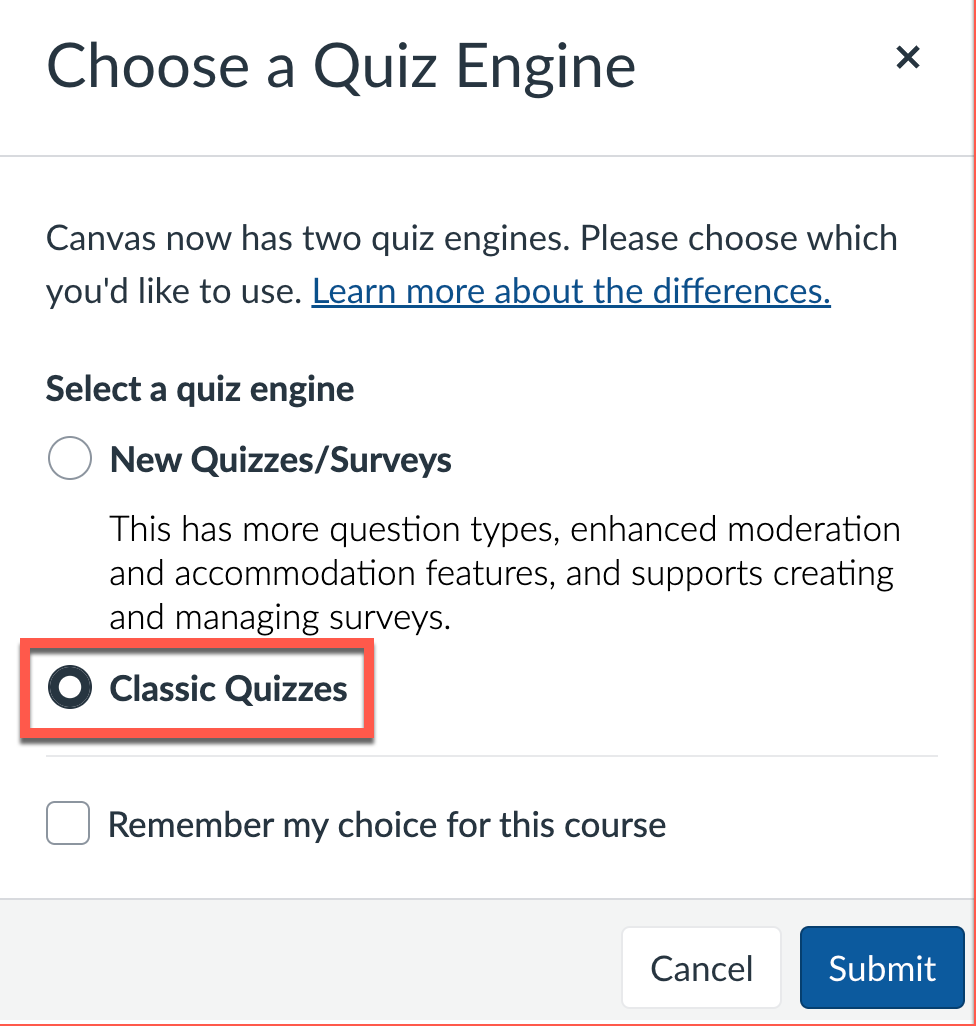
This month's accessibility tip focuses on creating accessible quizzes in Canvas. Quizzes are a powerful tool for determining students' understanding and knowledge of course content, and there are ways to create your quizzes to maximize their accessibility. Canvas offers two quiz formats, Classic Quizzes and New Quizzes. For accessibility purposes, we strongly recommend using Classic Quizzes, as New Quizzes have been found to have numerous accessibility issues. Although accessibility of the New Quiz format may improve in future updates, Classic Quizzes are the recommended quiz type for providing accessible quizzes for students. As Figure 1 shows, when you add/create a quiz, you have the option to choose the Classic Quiz format.
Add Alternative Text to Informational Graphics
We also want to take this opportunity to encourage you to add alternative text descriptions (better known as “alt text”) to any informational graphics you may include in your quizzes (or elsewhere in your course). Alt text is concise textual description that text-to-speech and other assistive technology like screen readers announce. It helps users with visual or certain cognitive disabilities perceive the content and purpose of the images. Additionally, if an image fails to load or the user has blocked images, the browser will make the alternative text visible in place of the image. When writing alt text, remember to be concise and convey the point of the image. The same pie chart, for example, can be used multiple times in a lesson to make different points about its data patterns. As much as possible, try to communicate the point of the image in the main text so all learners benefit from this important information.
For step-by-step instructions for adding alt text in Canvas, see Instructure's How do I manage alt text and display options for images embedded in the Rich Content Editor
Clarify Your Question Types
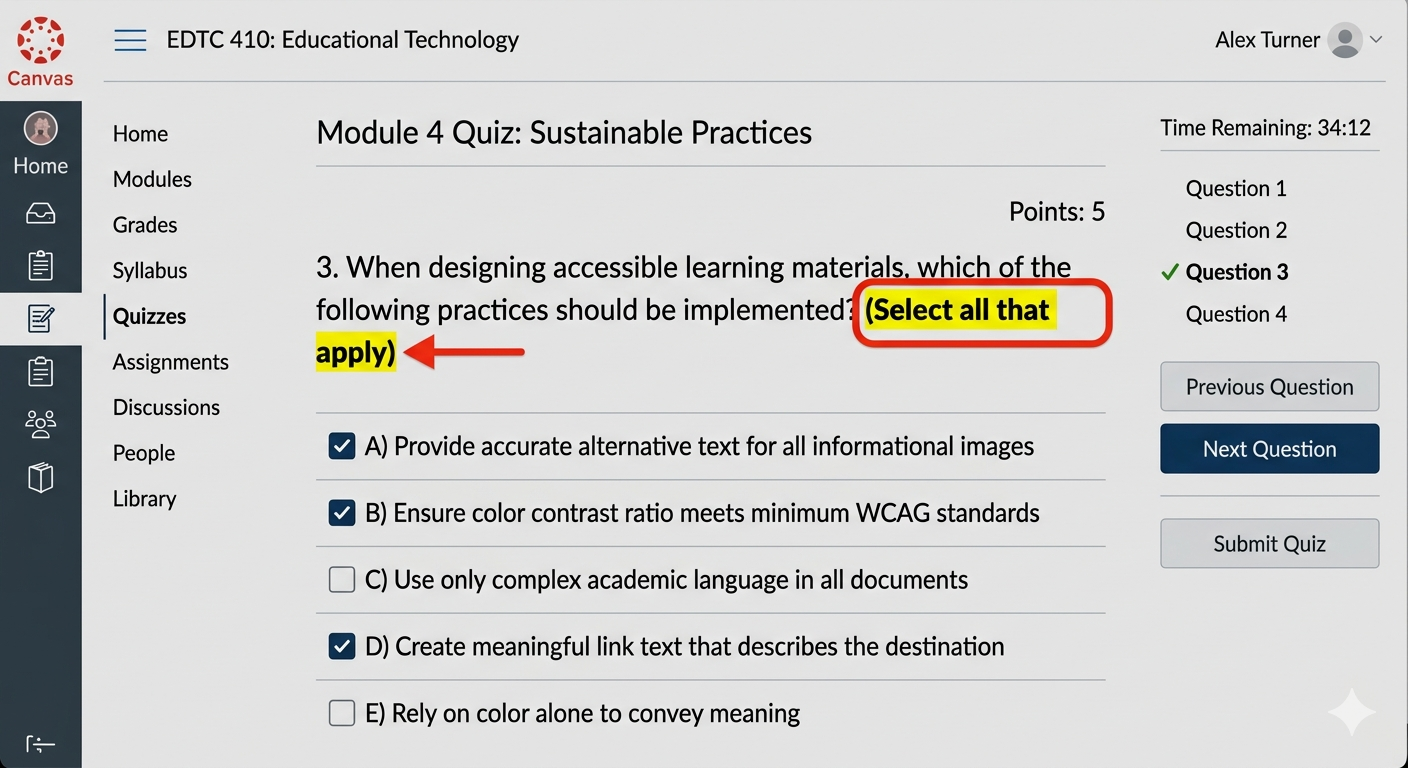
A third helpful accessible quiz recommendation is to indicate the question type in the question text of the quiz, as shown in Figure 2. If you are using a Multiple Answer type question, for instance, then include language in your question that says "Multiple answers are possible" or "Select all that apply." This additional language helps clearly communicate for all users that the question is not a single-answer question.
Additional Resources & Feedback
For more information on these and other tips to improve quiz accessibility, please read the following KnowledgeBase Article: Canvas@Illinois, Creating Accessible Quizzes. If you have any suggestions for Canvas accessibility tips, please contact us CITL-UDLTeam@illinois.edu and we’ll consider them for one of our future Canvas Newsletter Accessibility Tips!
Meet the Canvas Accessibility Checker!
By Melanie Grove
This month reflects the first in a series of accessibility tips focusing on the built-in Accessibility Checker in Canvas. When creating a page in your Canvas course, you may have noticed the checker’s small Leonardo Da Vinci-like character just below the edit window. The icon’s outstretched arms represent Universal Access, and the number beside it tell you there are accessibility issues you can address to make your content more accessible to your students.

5 of the Most Common Accessibility Issues
The Canvas Accessibility Checker can identify 12 types of accessibility issues, including these 5 common ones:
- Image description (known as alternative or alt text) problems, such as alt text that is missing, too long, or is simply the name of the image file itse
- Adjacent links with the same URL (where the text should be a single link)
- Table issues, such as missing captions, headers, and/or header scope
- Headings that are too long
- Color contrast ratios that make text or images difficult to discern
Quick Fixes (and a Little Celebration!)
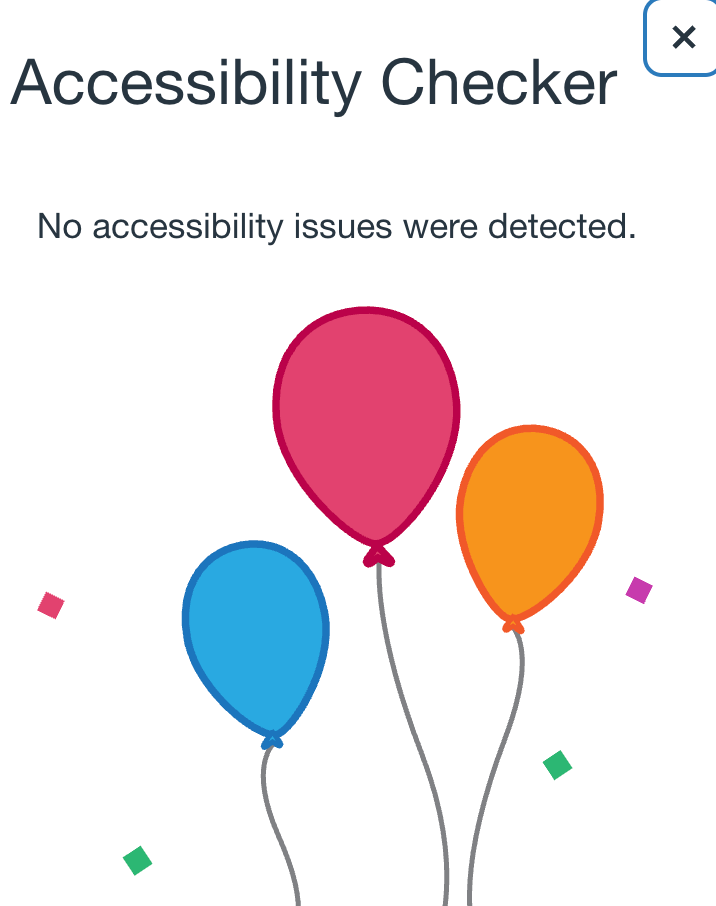
Not only will the Accessibility Checker flag these kinds of accessibility issues for you, it will also walk you through how to fix them. The fix may be as simple as typing something in a text box or choosing a new color and clicking "Apply." When there are no more accessibility issues remaining, you'll be rewarded with confetti and balloons (see Figure 2)!
What’s Coming Next in the Series
This month’s Accessibility Tip of the Month is aimed at simply introducing you to the Accessibility Checker and what it can do. In the Canvas monthly newsletters that follow, we’ll explore the specifics of the different issues the checker identifies and how fixing them can help reduce learning barriers and make your course content more accessible for your students. Tune in next month for background information on the importance of image description, how to write effective alternative text, and how to use the accessibility checker to manage image description.
Partner with CITL's UDL Team for Support!
If you’re looking to enhance the overall accessibility and inclusivity of your course and teaching, CITL's Universal Design for Learning (UDL) Team can also help. For more information, contact the UDL Team at CITL-UDLTeam@illinois.edu.
What is Alt Text?
By Marc Thompson
This month’s Accessibility Tip of the Month focuses on one of the most important accessibility issues the Canvas Accessibility Checker looks for: alternative (or “alt”) text for images. If ever there was a “poster child” for accessibility, it would have to be alt text. So, what exactly is alt text?
Alt text is essentially text description for non-text content. Alt text is written for informative images, rather than decorative images (such as decorative borders, for instance). For most content created in Canvas pages, informative non-text content consists of graphics, photos, graphs, charts, and the like.
Why Do We Need Alt Text?
Alt text is mostly used by people who are blind or have low vision and either cannot see the image or cannot see it well enough to understand it. In such cases, alt text is readable by assistive technologies that read the alt text aloud, such as screen readers, or convert it to Braille (as with Braille keyboards). Additionally, if the link to an image is broken and the image does not appear, the alt text description will become visible to all users. Some people with cognitive disabilities turn off images to reduce distractions, leaving alt text in its place. Finally, people in countries with slow internet may rely on alt text because they sometimes turn off images to conserve bandwidth and load pages faster.
Writing Effective Alt Text
Writing effective alt text requires careful thinking about the context and purpose of images. Because alt text is normally not shown to most learners without the use of assistive technologies, it is crucial that the main text related to the image (not the alt text) establishes the image’s context and purpose. In this way, the alt text then conveys only what’s needed to draw the connection between the image and what’s conveyed about it in the main text.
It follows that alt text should be as concise as possible. Although the Canvas Accessibility Checker will flag any alt text that exceeds 120 characters, there’s no hard and fast rule on a specific maximum number of characters alt text should contain. What’s most important is that alt text should be concise. The Canvas Accessibility Checker can’t determine if an image is informative or decorative, but it will give you an option to mark the image as decorative or provide alternative text description. If you don’t add alt text for the image, Canvas will automatically insert the image filename (e.g., image-name.jpg) as alternative text, and the checker then flags filenames used as alt text.
Using the Canvas Accessibility Checker to Fix Alt Text
Now that you know what alt text is, why it's needed, and how to write it effectively, you're ready to use the Canvas accessibility checker to locate and fix image-related alt text issues. The accessibility checker runs automatically in the background while you’re editing a page, so there’s no need to initiate a check. All you need to do is click the Accessibility Checker icon to review and fix the issues detected!
The accessibility checker looks for 3 image-related issues: missing alt text, filenames used as alt text, and the character length of the alt text description. As shown in Figure 1, when an issue is detected, the editor highlights the affected area [1]. The sidebar displays the accessibility issue [2] and an explanation of the error [3]. To learn more about the accessibility issue, you can click the Information icon [4].
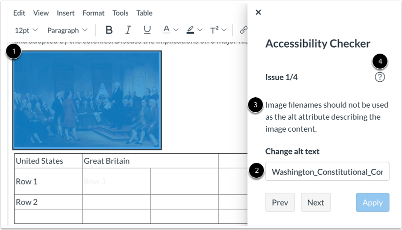
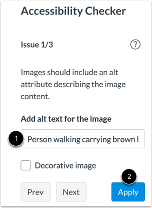
If your image is missing alt text, the accessibility checker sidebar displays a text field for you to enter alt text [1]. If the image is decorative, you can simply tick off the Decorative image checkbox. If the checker detects that you have used a filename for the alt text, or if your alt text is more than 120 characters long, the checker will display a text field with the alt text to allow you to change the alt text. When you are finished with your changes, simply click the Apply button [2] to make the fixes!
Tune in next month when we explore how to use headings to organize the information on your pages in Canvas and make them more understandable and navigable to all learners, including learners who may be using assistive technology like screen readers.
If you’re looking to enhance the accessibility and inclusivity of your course and teaching, CITL's Universal Design for Learning (UDL) Team can help. For more information, contact the UDL Team at CITL-UDLTeam@illinois.edu.